
Getting Started
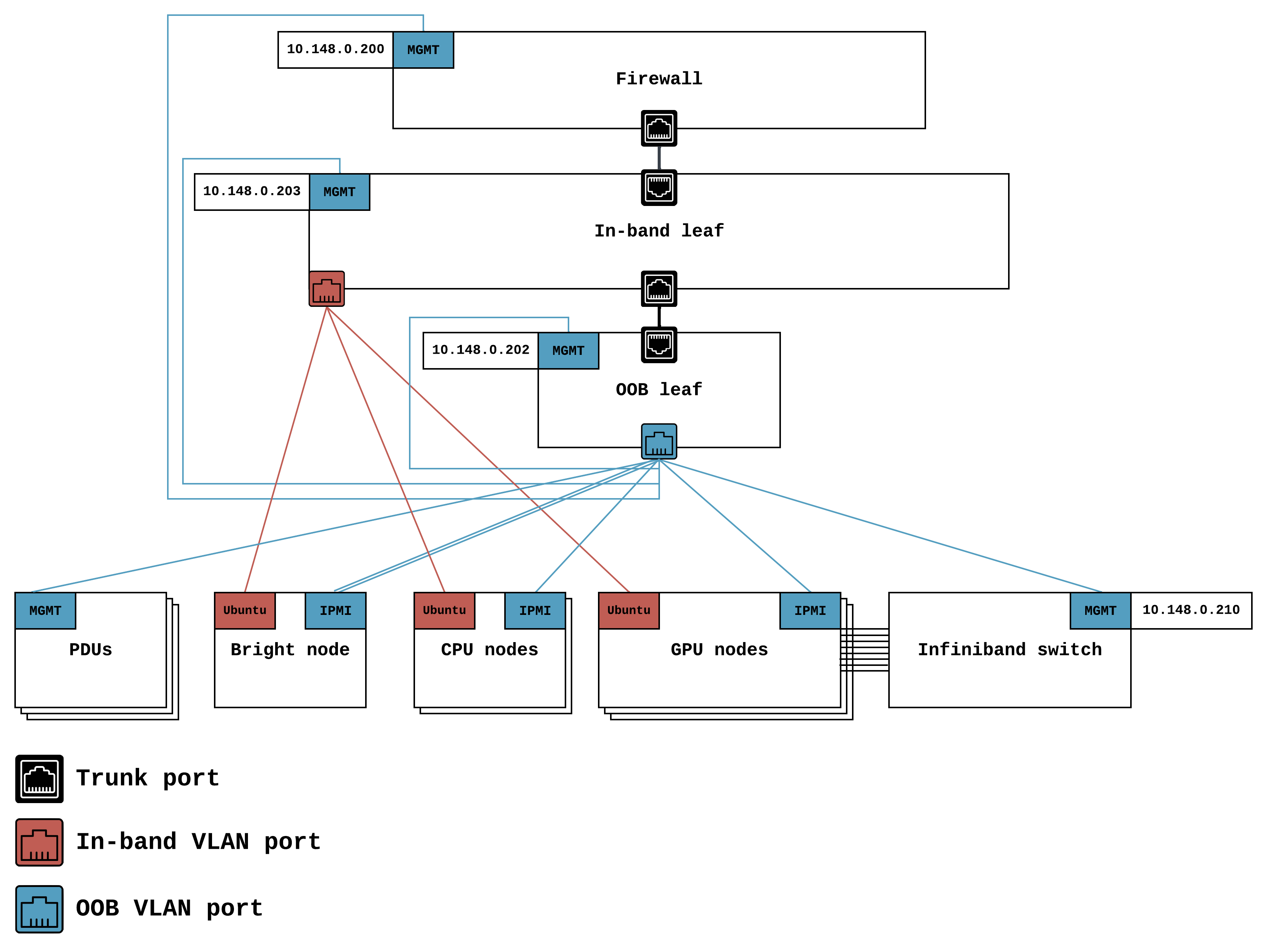
GPU servers: 5x H100 SXM5 GPU nodes interconnected with a 3200 Gbps InfiniBand
CPU nodes: 3x AMD EPYC 7513 (32 cores, 2.6 GHz) servers
See our Cheat Sheet for instructions on getting command line access to your hosts via your browser.
Your cluster uses Fortigate, Fortinet’s Next-Generation Firewall (NGFW) to provide network protection and remote access services. Getting access to your cluster from your personal computer involves the following steps:
- Downloading FortiClient, a VPN client, to your computer.
- Installing and configuring FortiClient on your computer.
- Logging into FortiClient from your computer.
After these three steps, you’ll have full access to the cluster, as if it were part of your local network.
From your computer, visit Fortinet’s product download portal and download FortiClient VPN. While no specific Linux distributions is listed, FortiClient supports a number of distributions.
| Distribution | Package format to download |
|---|---|
| Red Hat | .rpm |
| CentOS | .rpm |
| Fedora | .rpm |
| Ubuntu | .deb |
| Debian | .deb |
To start Foriclient, run forticlient gui from the commandline. A window will pop up.
- Click “REMOTE ACCESS” link link the left navigation.
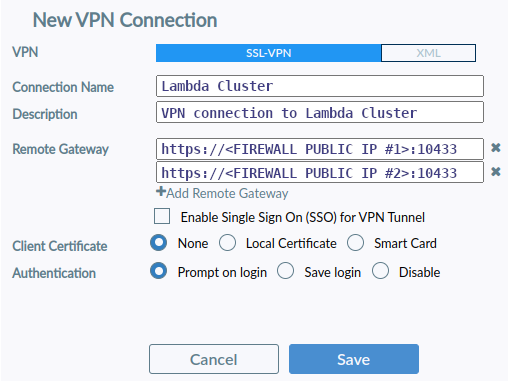
- Click the “Configure VPN” link.
- Fill out the configuration form and click “Save” button.
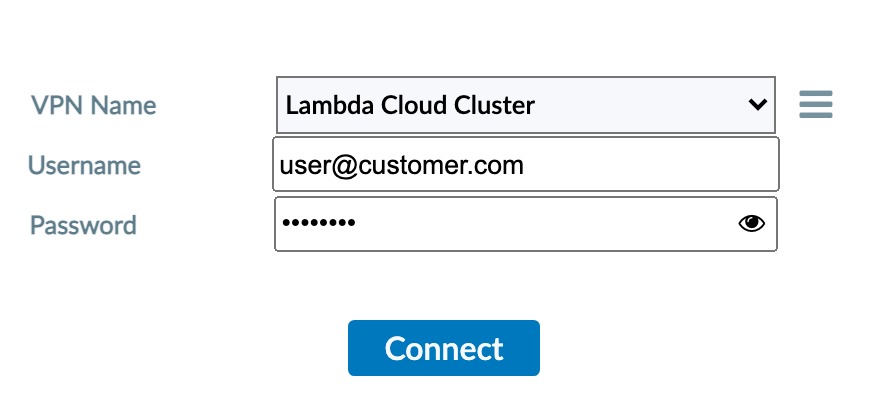
Fill in the username and password and click Connect.
You now should have full access to the cluster, as if it were part of your local network.
As part of the provisioning process, someone on your team will have given Lambda a public SSH key to install on your nodes. From your computer simple enter:
ssh -i <private SSH key> ubuntu@<IP address of server>