
Bright K8s
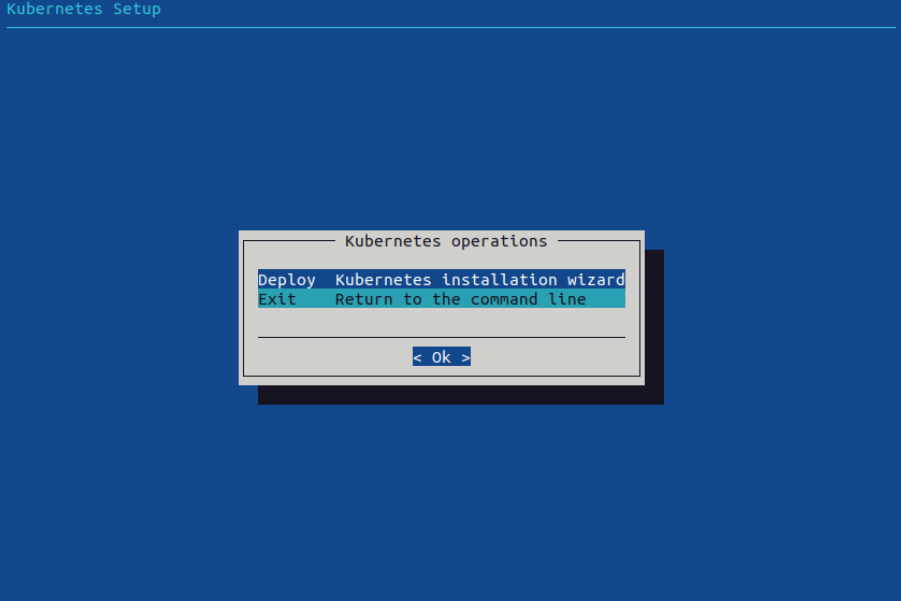
SSH into the headnode and run:
root@headnode01:~# cm-kubernetes-setup
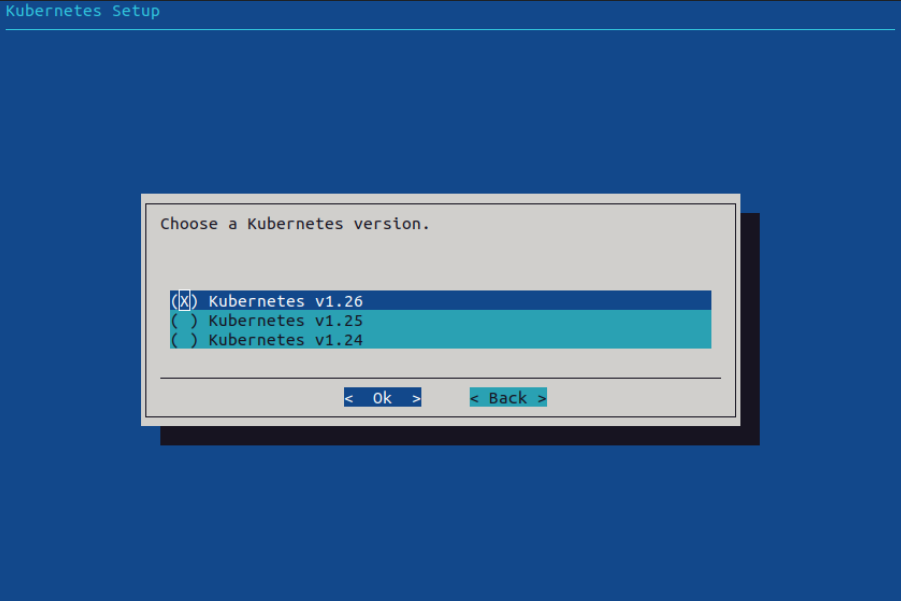
Choose version
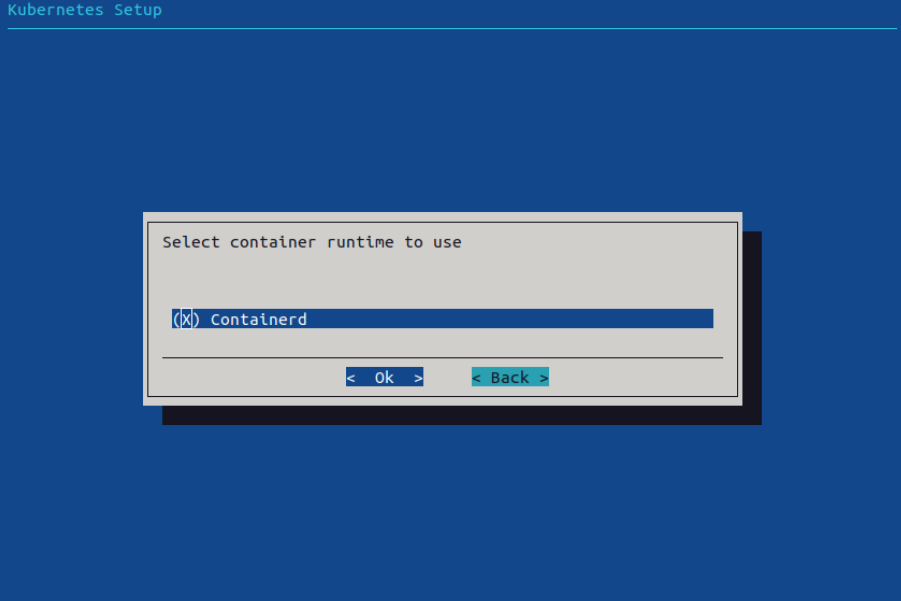
Select Containerd container runtime
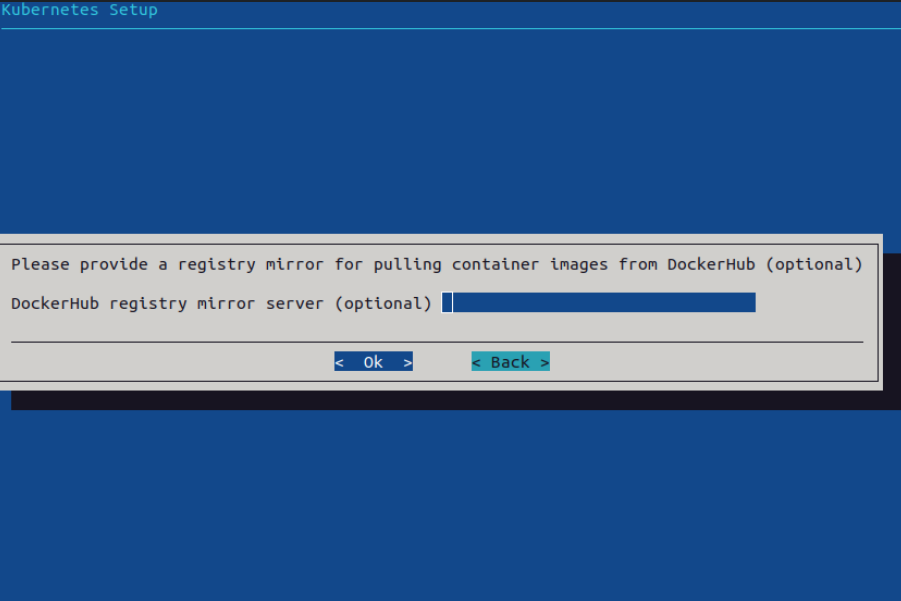
We can skip selecting a Dockerhub mirror
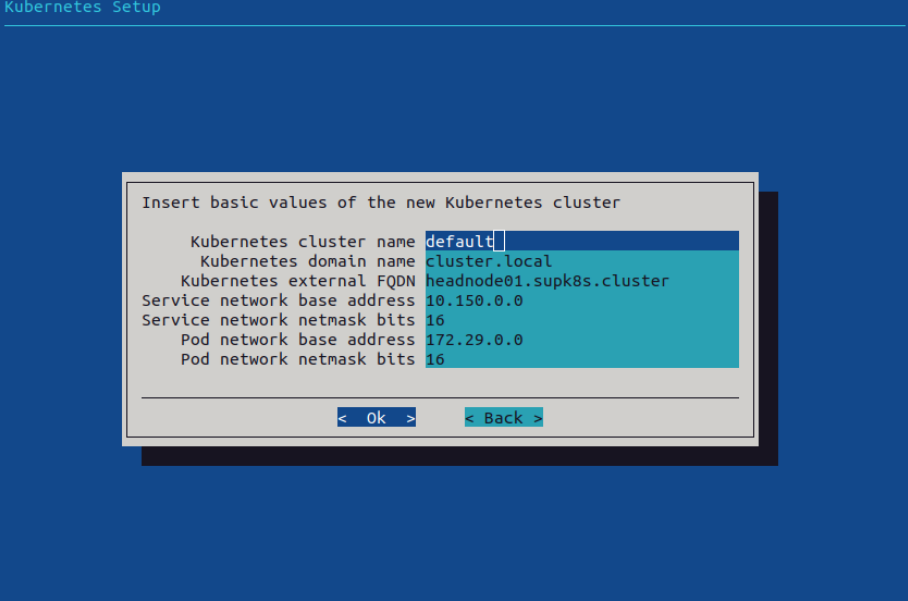
Basic values of the Kubernetes cluster
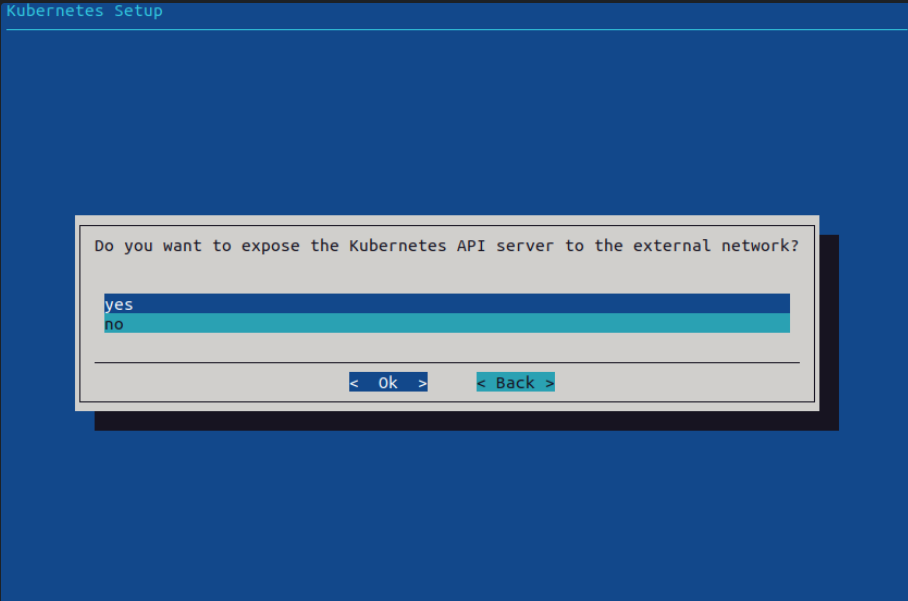
Select “yes” to expose the Kubernetes API server to the external network.
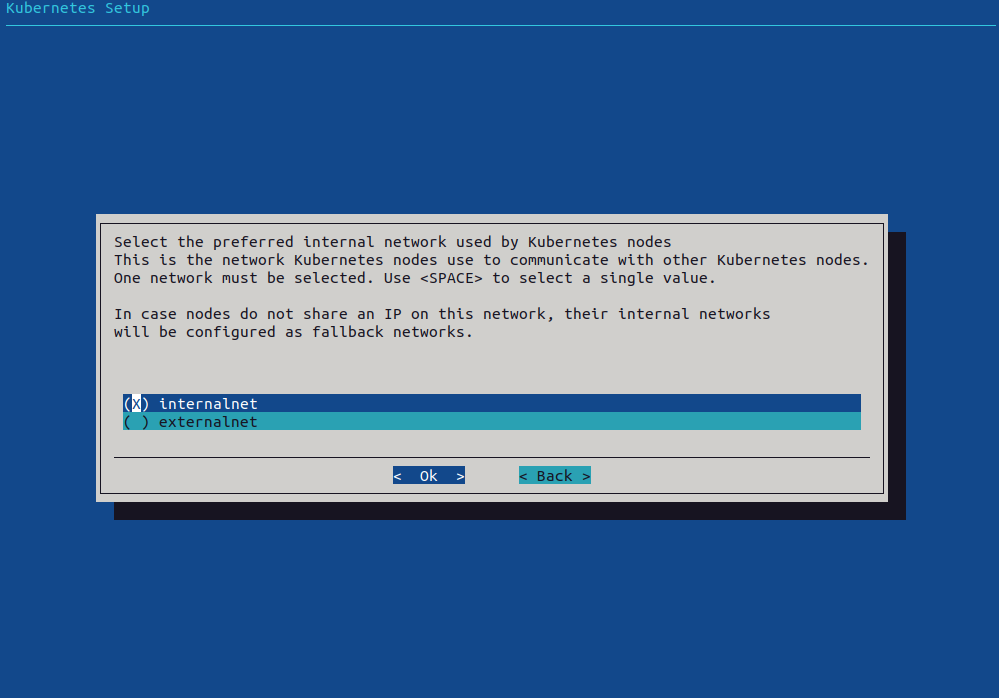
Select the network over which the Kubernetes nodes will communicate
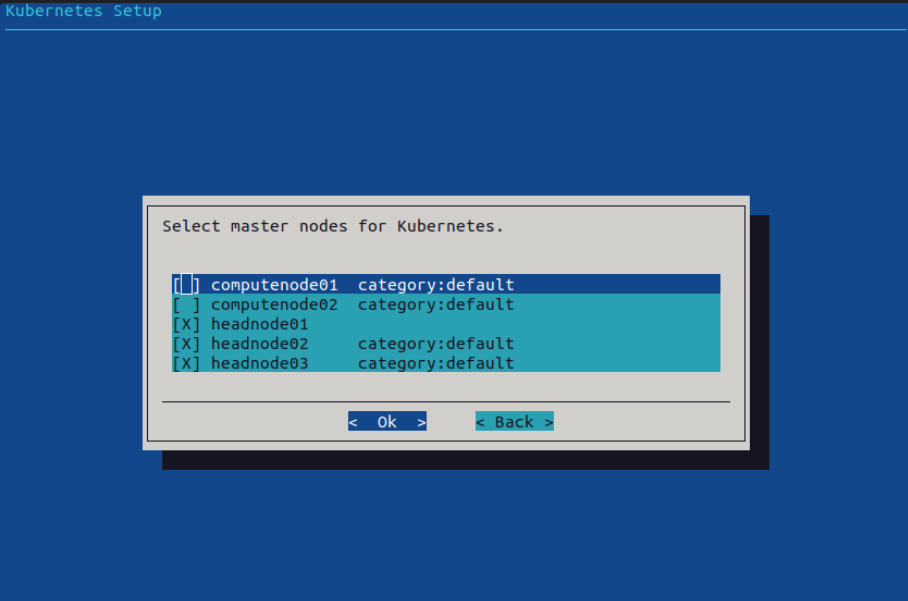
Select Kubernetes master nodes (here it should be headnode01, headnode02, loginnode01)
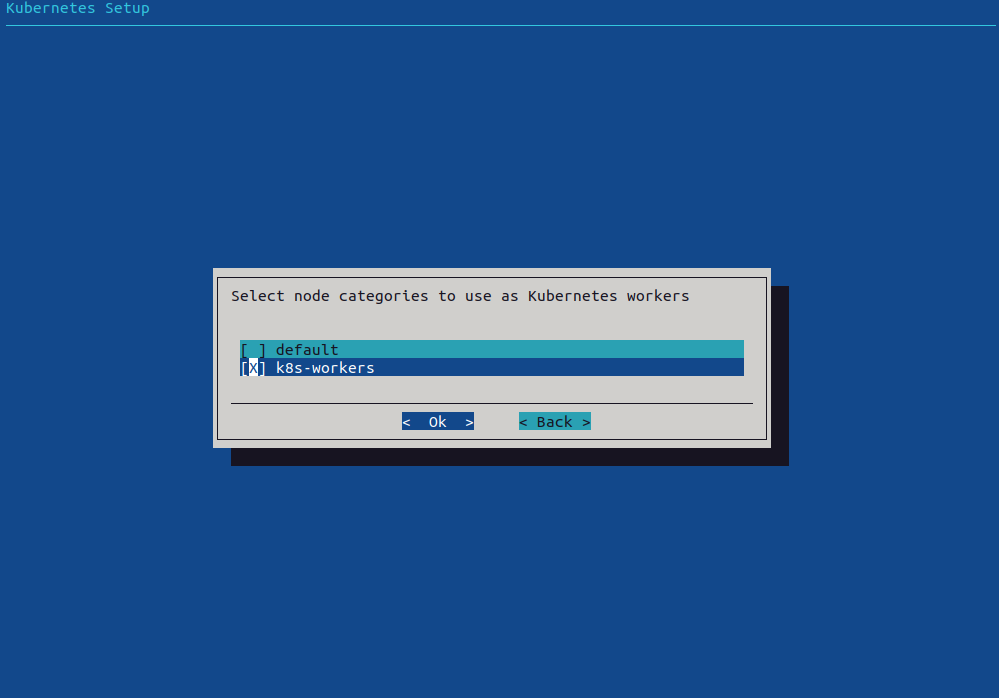
We select the category “k8s-workers“ (created in Bright GUI Grouping → Categories)
This category should contain all the nodes to be used as Kubernetes workers
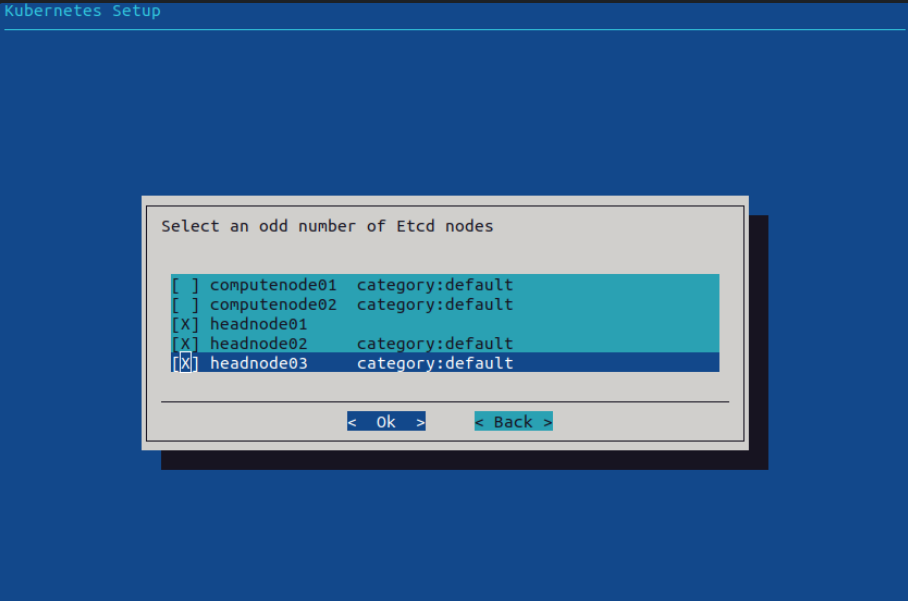
We install the etcd nodes in the headnodes (and loginnode)
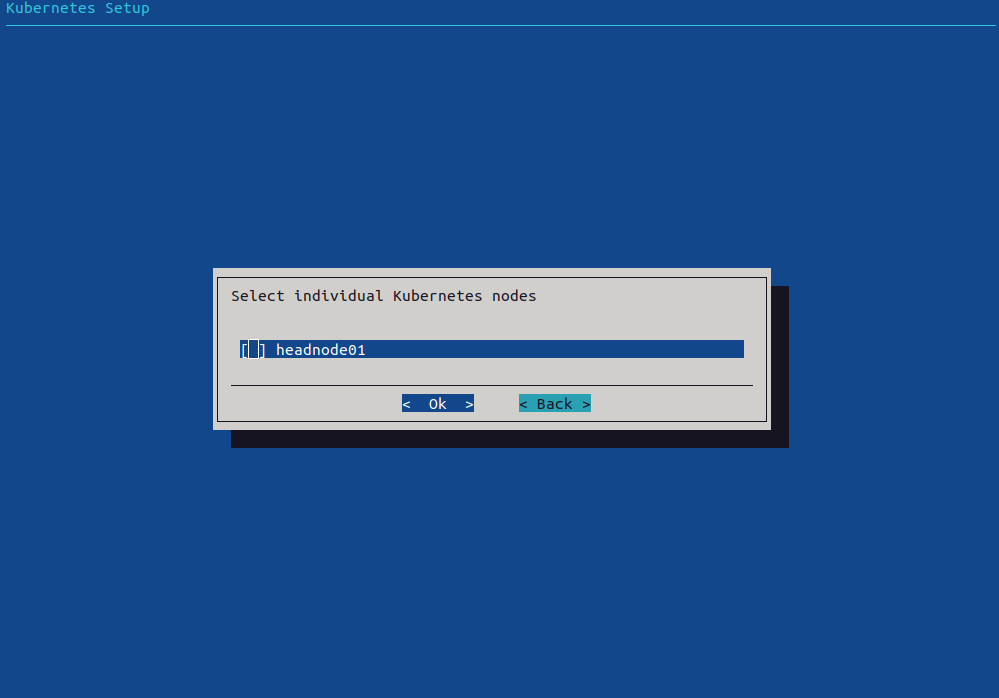
Leave this unchecked
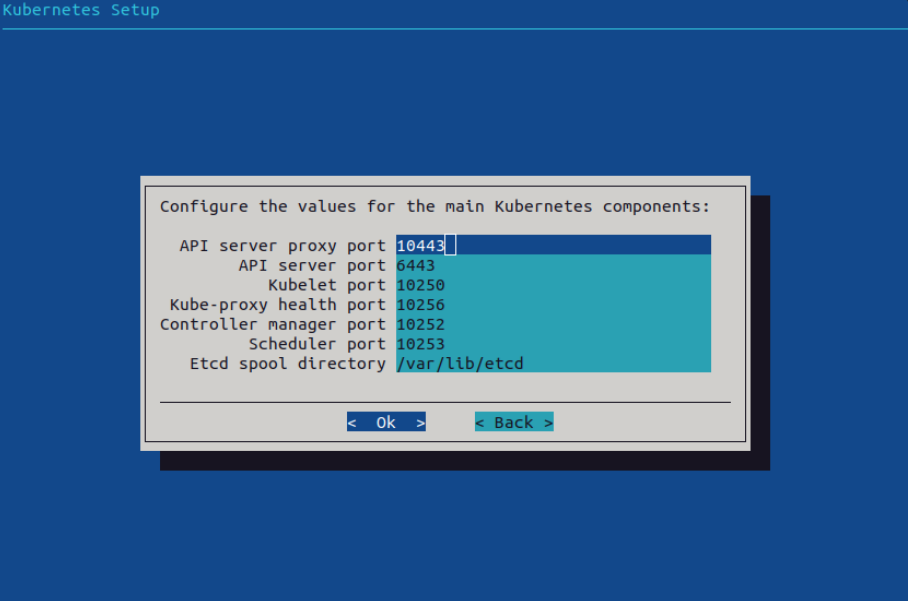
We can leave the default ports and ETCD spool dir
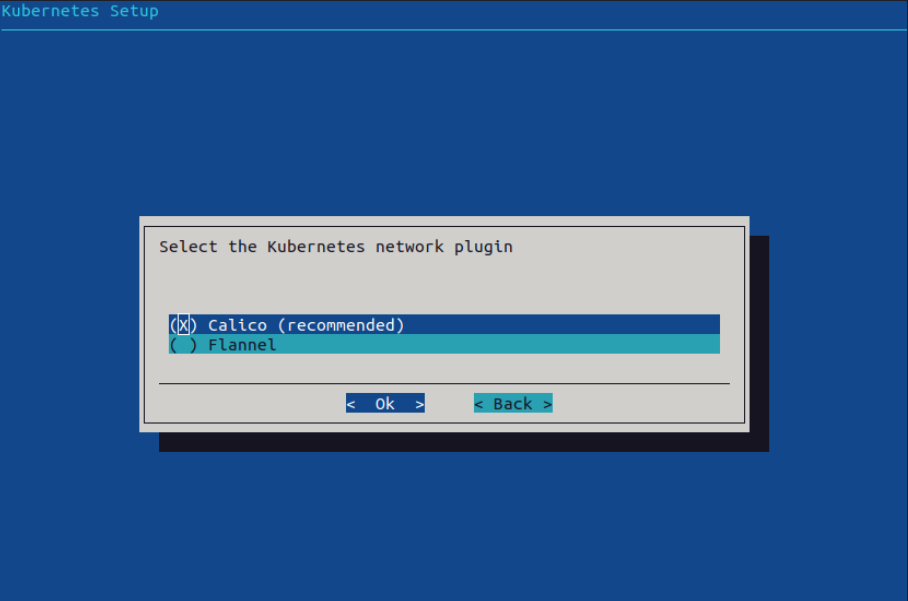
The suggested CNI is Calico
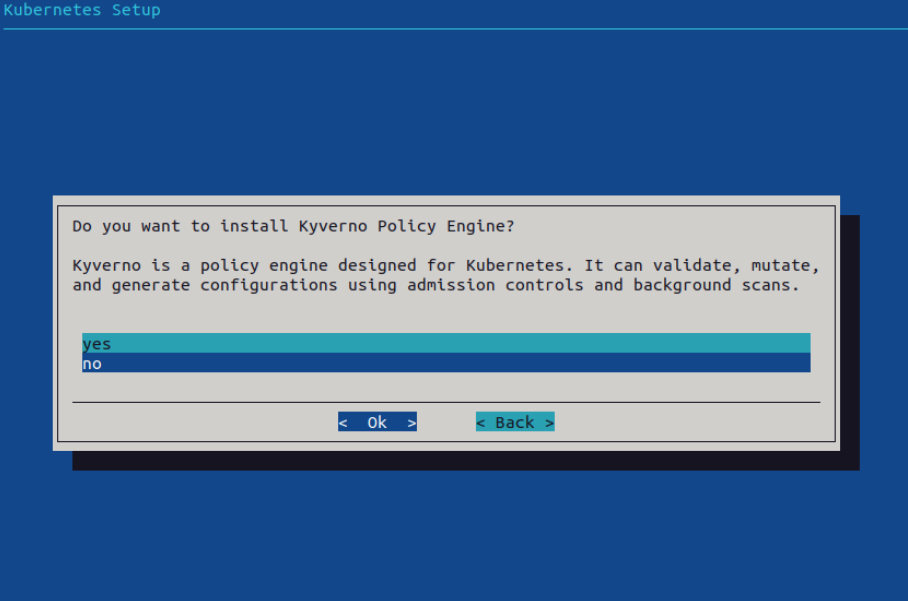
We don’t install Kyverno Policy Engine
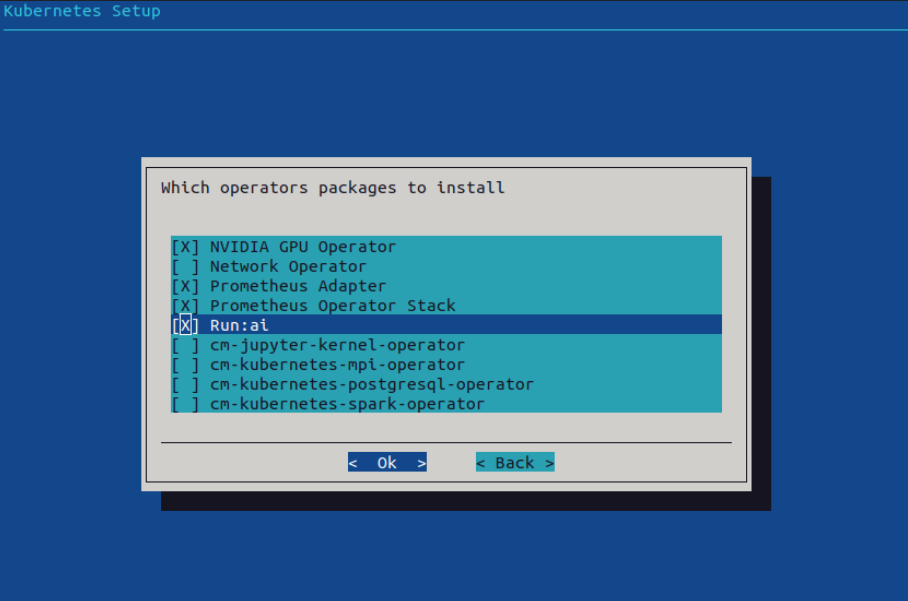
We select operator packages to be installed
All the operators are optional, however, NVIDIA GPU Operator is recommended
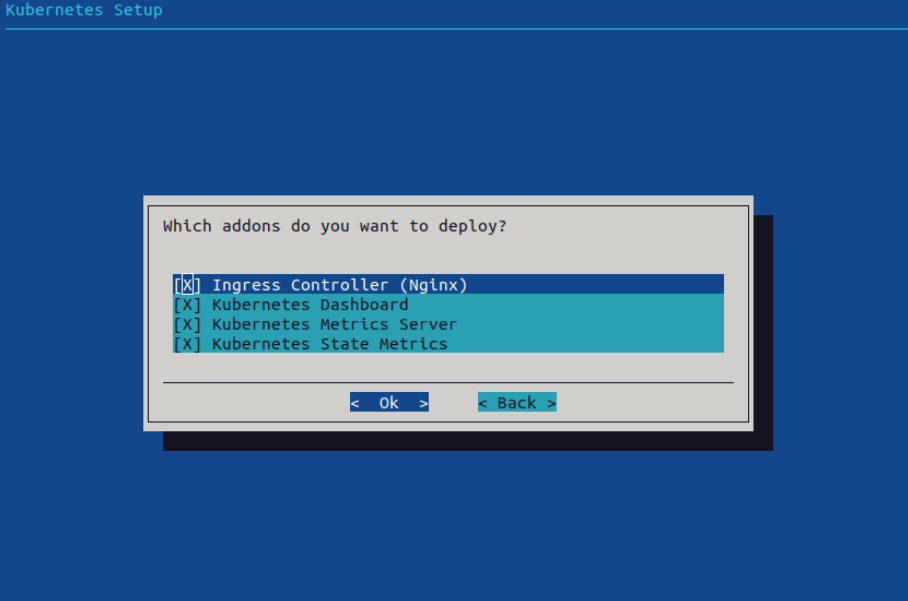
All the addons are optional
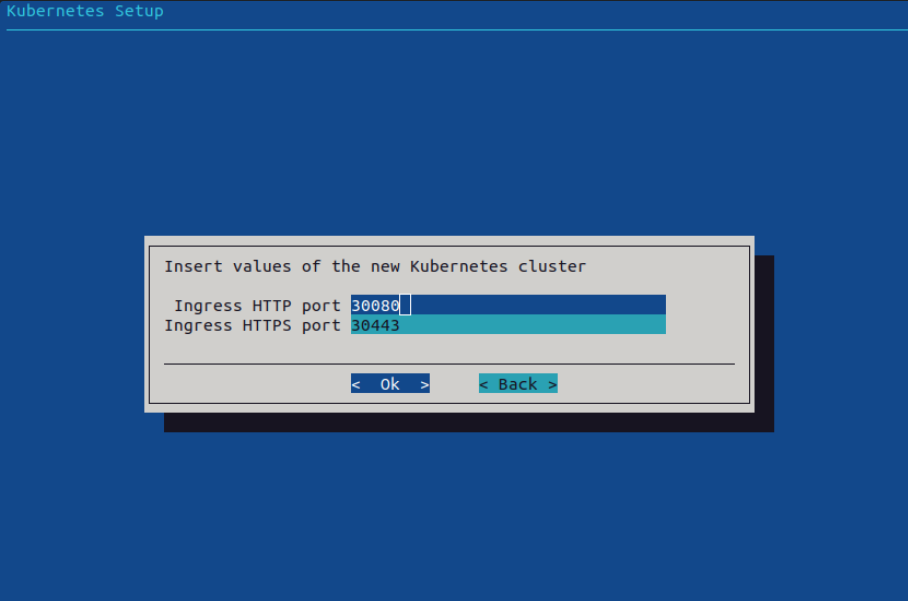
The typical Ingress port values are 80 and 443.
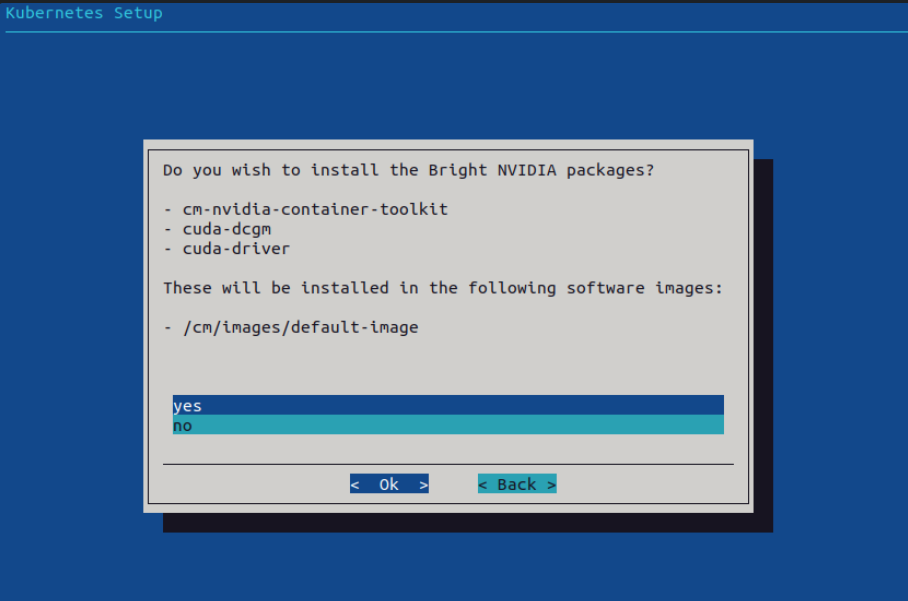
It is recommended to install the Bright NVIDIA packages
If not, you will have to install the appropriate drivers manually
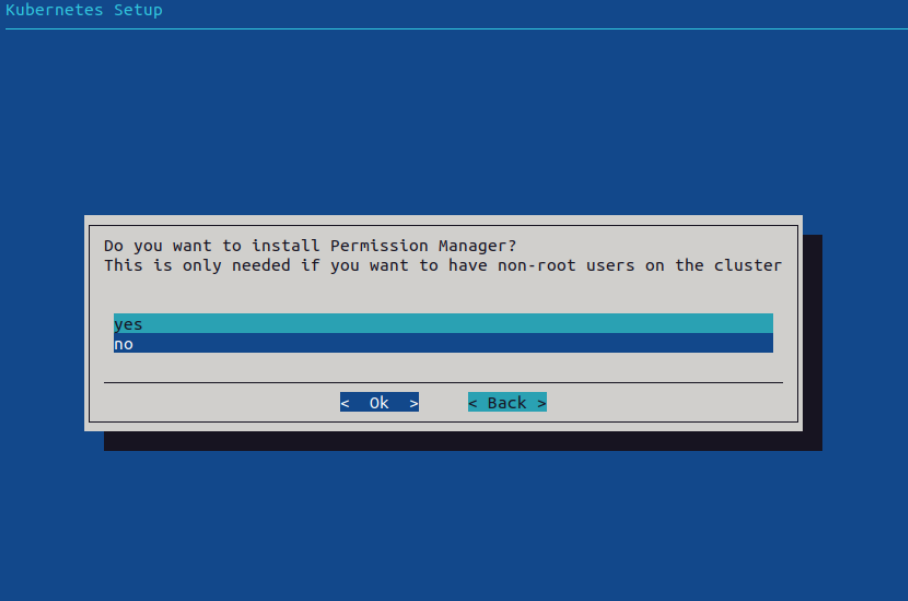
We don’t install Permission Manager
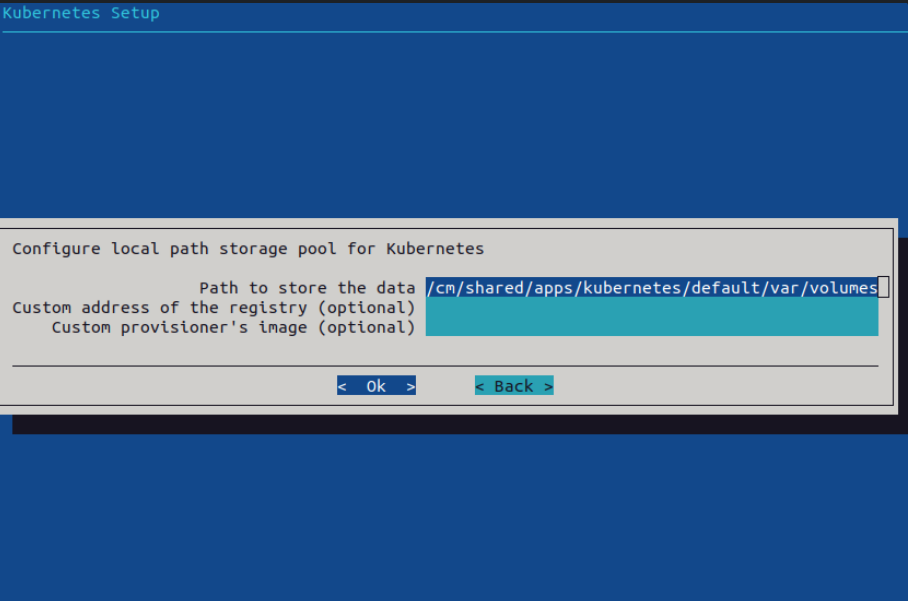
If we have another Storage Class (eg NFS) we may need to not set “Local Path“ as default
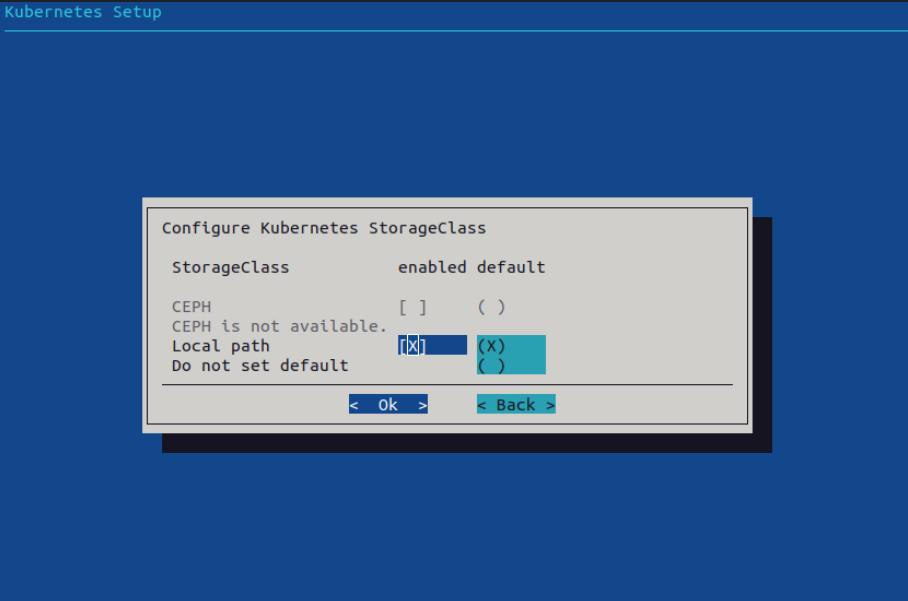
In production, we’d want the data on the largest/fastest networked storage.
The directory “/cm/shared/” can be already mounted on the network storage.
Save config & deploy
Installation logs can be found in “/var/log/cm-kubernetes-setup.log”
After the installation is complete, we can access the Kubernetes cluster
“kubectl” is installed as an environment module [https://modules.readthedocs.io/en/latest/]. This is how Bright typically handles installing software, as it allows several versions of the same library to exist on a file share and be loaded or unloaded.
First, verify that there is a new kubernetes module
root@headnode01:~# module avail
Load module file for Kubernetes
root@headnode01:~# module load kubernetes
Use kubectl
root@headnode01:~# kubectl get pod -A
NAMESPACE              NAME                                         READY   STATUS      RESTARTS   AGE

output removed